Blue-Green Deployments with Flightcontrol
This feature is currently under private preview. If you would like access to Blue-Green deployments, please contact support.
Blue-Green deployment is a deployment strategy that enables zero-downtime deployments by maintaining two identical production slots. This allows you to deploy new versions of your application, test them in a production-like setting, and then seamlessly switch traffic to the new version.
Blue-Green deployment is configured per individual service, not at the Flightcontrol environment level. Each service you enable Blue-Green on will have its own independent Blue and Green slots. Other services in the same environment will continue to deploy normally.
What is Blue-Green Deployment?
In a Blue-Green deployment strategy, you maintain two separate but identical slots:
- Blue slot - Always serves production traffic
- Green slot - Always serves as standby/preview for testing new deployments
At any time, one slot (Blue) serves live production traffic while the other (Green) is idle or serves preview traffic. When you’re ready to release a new version, you simply swap which slot receives production traffic.
How It Works
Flightcontrol’s Blue-Green deployment implementation uses the following architecture:
Architecture Overview
- Two ECS Services - Flightcontrol creates two separate ECS services that can run your application
- Two Target Groups - Each ECS service is bound to its own Application Load Balancer target group
- Load Balancer Routing - The load balancer routes traffic based on rules:
- Default action → Routes production traffic to the Blue environment
- Header-based rule → Routes preview traffic to the Green environment
Deployment Flow
When you enable Blue-Green deployments:
- Initial Setup - Flightcontrol provisions both Blue and Green slots
- First Deployment - Your application is deployed to the Blue (production) slot
- Subsequent Deployments - New deployments always go to the Green (standby) slot first
- Testing - You can test the Green slot using a special header before swapping
- Swapping - When ready, you swap Blue and Green, making the Green slot become production
- Rollback - If issues occur, you can swap again to revert back
- Pre/Post-Deploy Commands - Pre-deploy and post-deploy commands execute normally during each deployment to the Green slot, before you swap to production
Key Principles
- Blue = Always Production - The Blue slot always serves production traffic
- Green = Always Standby - The Green slot always serves as standby/preview
- Services are Interchangeable - The actual ECS services swap between Blue and Green slots
Configuration
To enable Blue-Green deployments for a service, add the deploy configuration to your service’s target property in flightcontrol.json:
Requirements
- Service type must be
"web"or"worker" - Works with any target type (
fargate,ec2, etc.)
Sample Configuration
{
  "$schema": "https://app.flightcontrol.dev/schema.json",
  "environments": [
    {
      "id": "production",
      "name": "Production",
      "region": "us-west-2",
      "source": {
        "branch": "main"
      },
      "services": [
        {
          "id": "my-web-service",
          "name": "My Web Service",
          "type": "web",
          "buildType": "nixpacks",
          "target": {
            "type": "fargate"
          },
          "deploy": {
            "type": "bluegreen",
            "greenAutoShutdownTimeoutInHours": 1
          },
          "cpu": 1,
          "memory": 2,
          "minInstances": 2,
          "maxInstances": 4,
          "buildCommand": "npm run build",
          "startCommand": "npm start"
        }
      ]
    }
  ]
}
Configuration Options
type(required) - Set to"bluegreen"to enable Blue-Green deploymentsgreenAutoShutdownTimeoutInHours(optional) - Number of hours to wait before shutting down the old Green slot after a swap. If not specified, the Green slot will not be shut down automatically. This gives you time to quickly rollback if needed.
Testing Before Swap
Before swapping your Blue and Green slots, you should test the Green (standby) slot to ensure the new deployment works correctly.
Preview Header
Flightcontrol automatically creates a custom header rule that routes traffic to the Green slot. You can find the header name and value in the Flightcontrol dashboard under your service’s Domains section.
The header format is:
- Header Name:
x-fc-green-deployment - Header Value: A unique value specific to your service (displayed in the UI)
Testing with curl
To test your Green slot before swapping:
curl -H "x-fc-green-deployment: <your-unique-value>" https://your-service.comReplace <your-unique-value> with the actual header value shown in your Flightcontrol dashboard.
Testing with Browser
You can also use browser extensions like “ModHeader” to add the custom header to your browser requests, allowing you to browse your Green slot as if it were production.
The Green slot uses the same configuration, environment variables, and database connections as the Blue slot, so you’re testing in a true production-like setting.
Swapping Blue and Green
Once you’ve tested your Green slot and are confident it’s working correctly, you can swap the Blue and Green slots to make the new deployment live.
Using the Dashboard
In the Flightcontrol dashboard:
- Navigate to your service’s overview page
- Find the Blue-Green Deployment section
- Click the Swap blue / green button
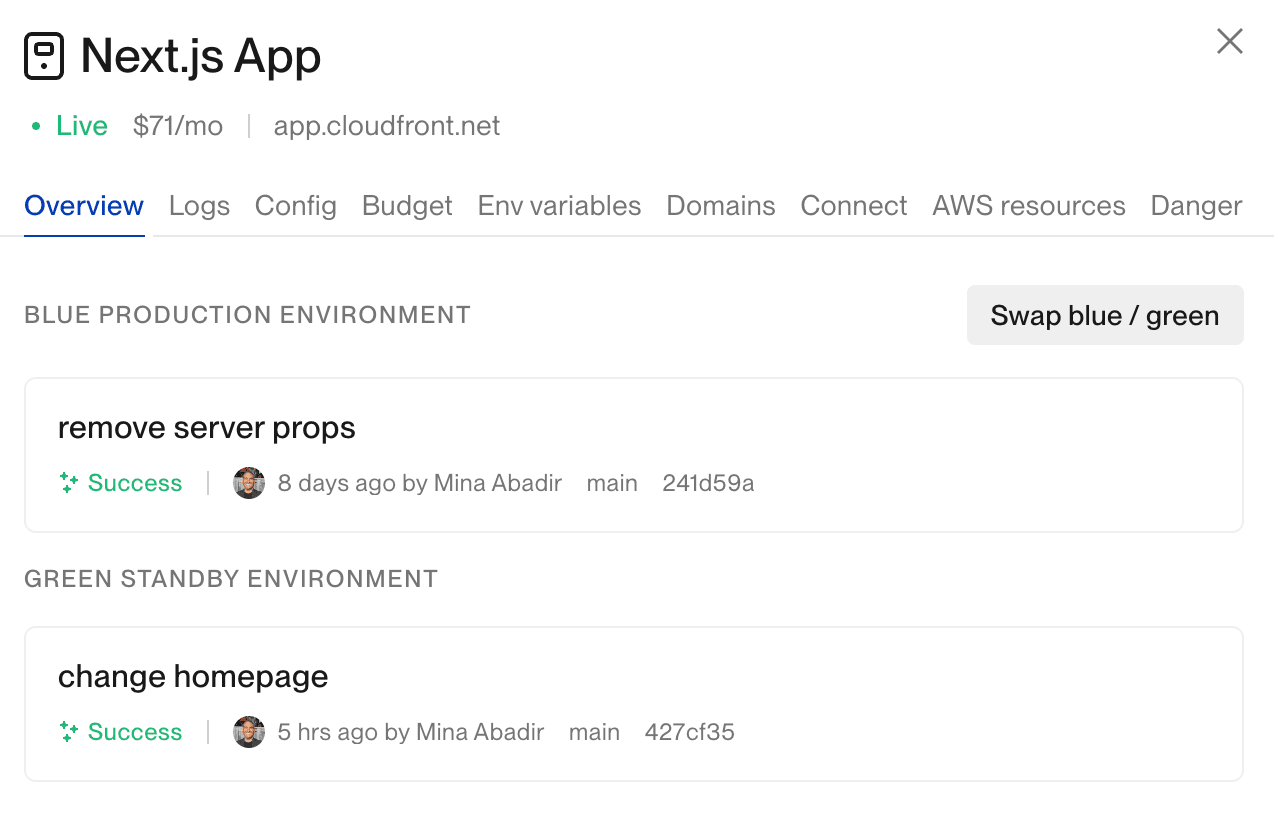
The swap process will:
- Verify both services are stable
- Synchronize the desired instance count between services
- Swap the load balancer routing (default action and header rule switch)
- Scale down the old production service (now in Green slot) after the grace period
During the swap operation, there may be a brief period where some requests are routed to the old slot. Plan swaps during lower-traffic periods if possible.
Using the API
You can also trigger swaps programmatically via the API. See the Swap Blue-Green API documentation for details.
curl -X POST \
  https://api.flightcontrol.dev/v1/services/{serviceId}/swap-blue-green \
  -H "Authorization: Bearer YOUR_API_KEY"
Rollback Strategy
If you discover issues after swapping to a new version, Blue-Green deployments make rollback simple:
Immediate Rollback
Simply swap again! The previous version is still running in the Green slot, so swapping back promotes it to production immediately.
- Click the Swap blue / green button again
- The previous version becomes production (Blue)
- The problematic version moves to standby (Green)
This is much faster than traditional rollback strategies because:
- No need to rebuild the previous version
- The previous version is already running and warm
- Database state is preserved (unless you made schema changes)
If you made database migrations in your deployment, you may need to also revert those changes when rolling back. Plan your database migrations to be backward-compatible when possible.
Best Practices
1. Test Thoroughly in Green
Always test your Green slot before swapping. Use the preview header to:
- Verify all functionality works correctly
- Check performance metrics
- Test critical user flows
- Validate integrations with external services
2. Database Migrations
Handle database migrations carefully:
- Use backward-compatible migrations when possible
- Run migrations as part of the deployment (before swap)
- Test migrations in a staging environment first
- Have a migration rollback plan ready
3. Monitor After Swap
After swapping:
- Watch application logs for errors
- Monitor performance metrics
- Check error tracking services (Sentry, etc.)
- Keep an eye on customer support channels
4. Gradual Rollout
Consider keeping the grace period longer (e.g., 2-4 hours) during business hours so you can quickly rollback if needed.
Troubleshooting
If you encounter issues with Blue-Green deployments, check:
- Swap Button Disabled - The Green slot may not have a deployment yet, or a swap operation is already in progress
- Deployment Failures - Deployments always go to the Green slot first. Check the deployment logs if builds are failing
- Header Not Working - Verify you’re using the exact header value shown in the dashboard (it’s case-sensitive)
- Swap Timeouts - If services aren’t stable, the swap may fail. Check service health in AWS ECS console
If you need help, contact support with your service ID and environment details.